🔑 How to Get Your Google API Key
To use the iStudy app, you need a free Google AI API key. Follow the steps below:
Caution:
If you fail to collect the API key after following the instructions below, we came across a couple of issues:
Restricted Gmail account: If you see any wording to this fact, try a different account or create a new one in the USA. UH accounts do not work.
Suspicius request: This warning appears in Apple computers with some browsers. Simply use a different browser.
If you follow the instructions below and still fail to get the API, take a screenshot of the website where you hit a roadblock, paste it in Gemini or chatGPT, and write “Help me get a Google AI studio API key. I am stuck in the current page. What do I need to do next? Be brief and give me a solution I can do now”You will do this only once, as the key(s) get saved in your local browser.
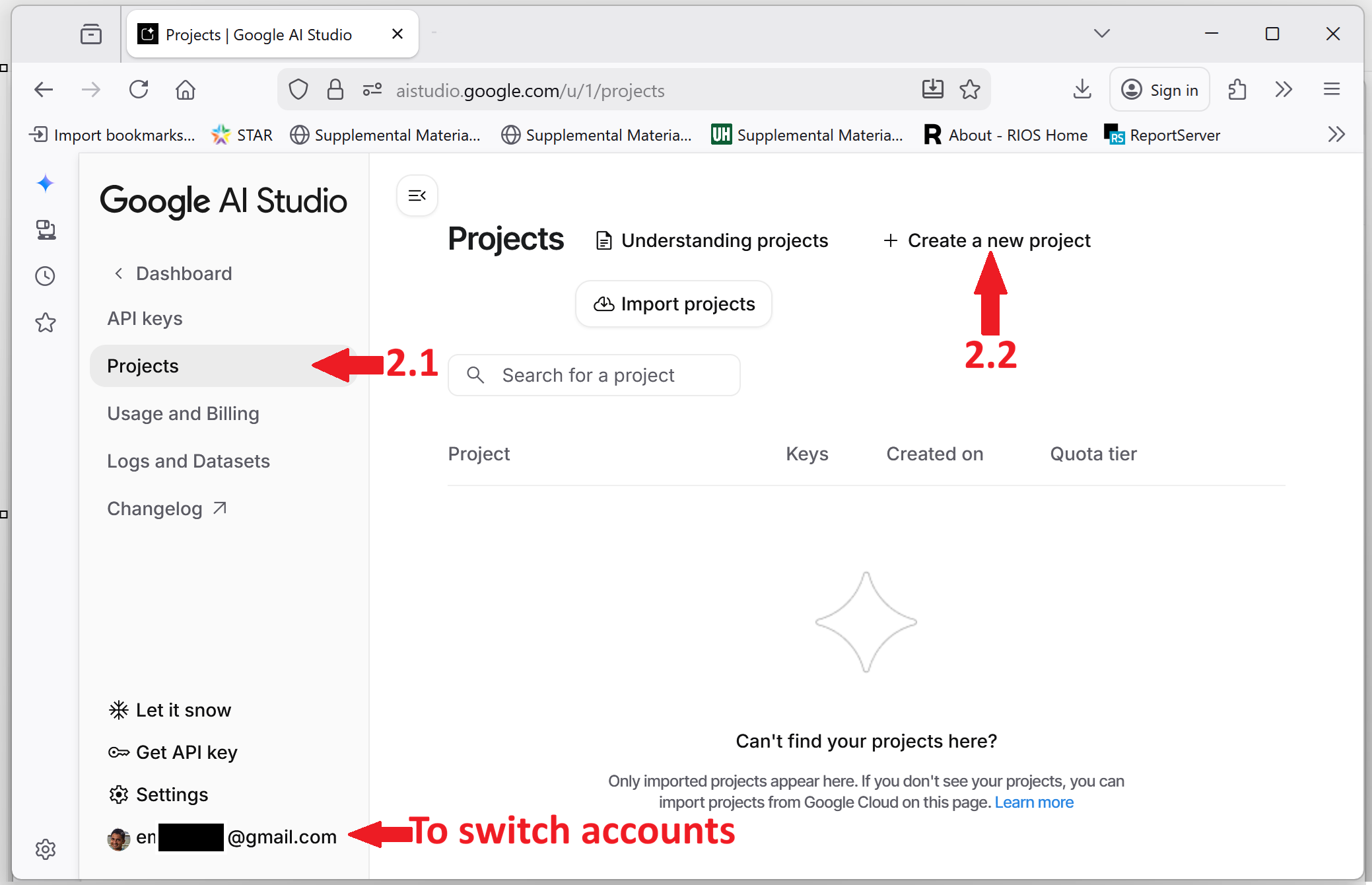
Go to Google AI Studio: Visit aistudio.google.com and log in with your personal Gmail account (UH emails do not work).
Create a Project:
- 2.1 Click on “Projects” (top left).
- 2.2 Click “+ Create a new project”.
- On the popup window, name your project “GEO309” and click “Create project”.
Generate the Key:
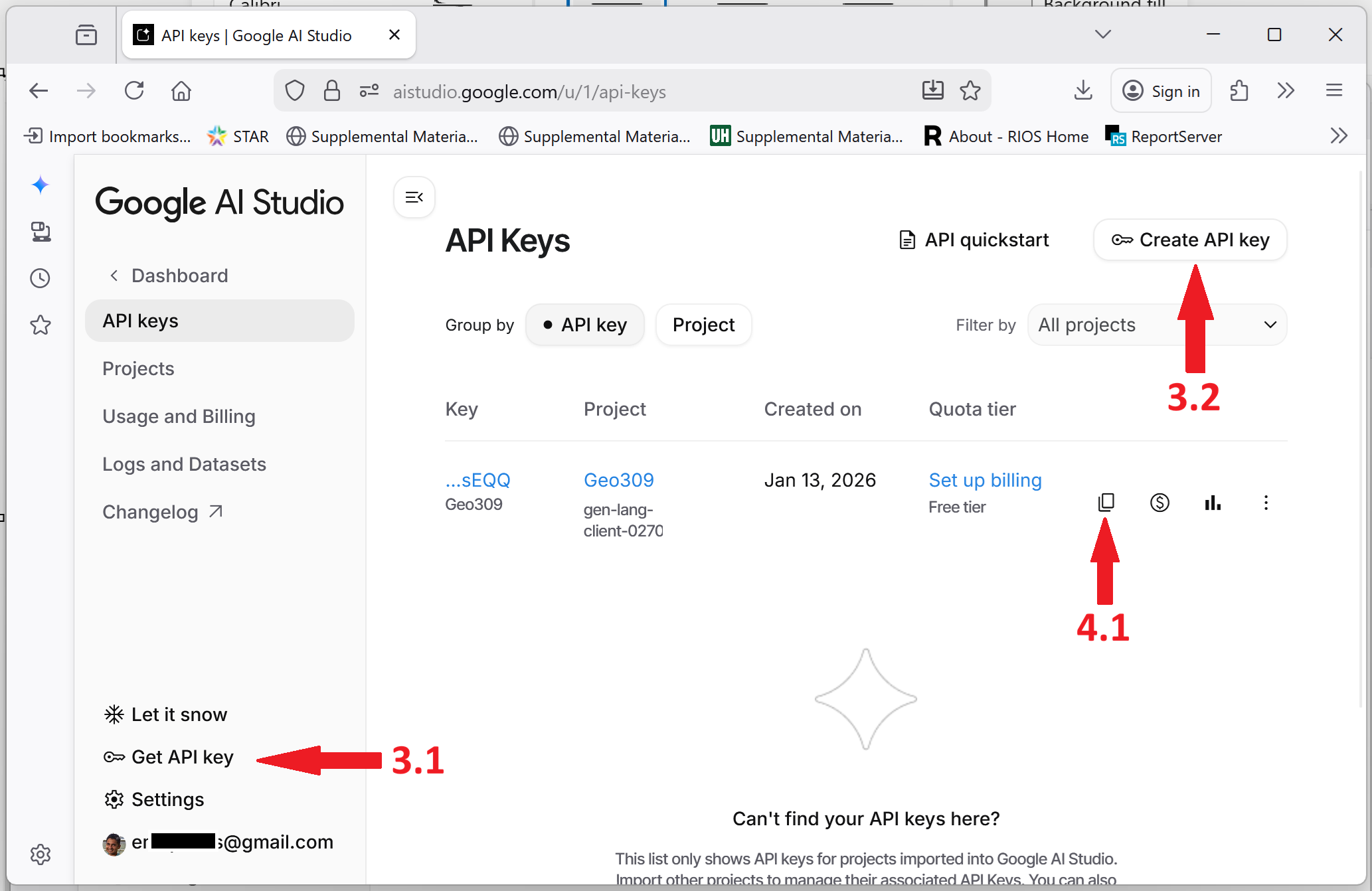
- 3.1 Click
Get API key(bottom left button). - 3.2 Click
Create API key. - On the popup window, select the GEO309 project you just created.
- Click “Create key”.
- 3.1 Click
Copy & Paste:
- Copy the generated key string.
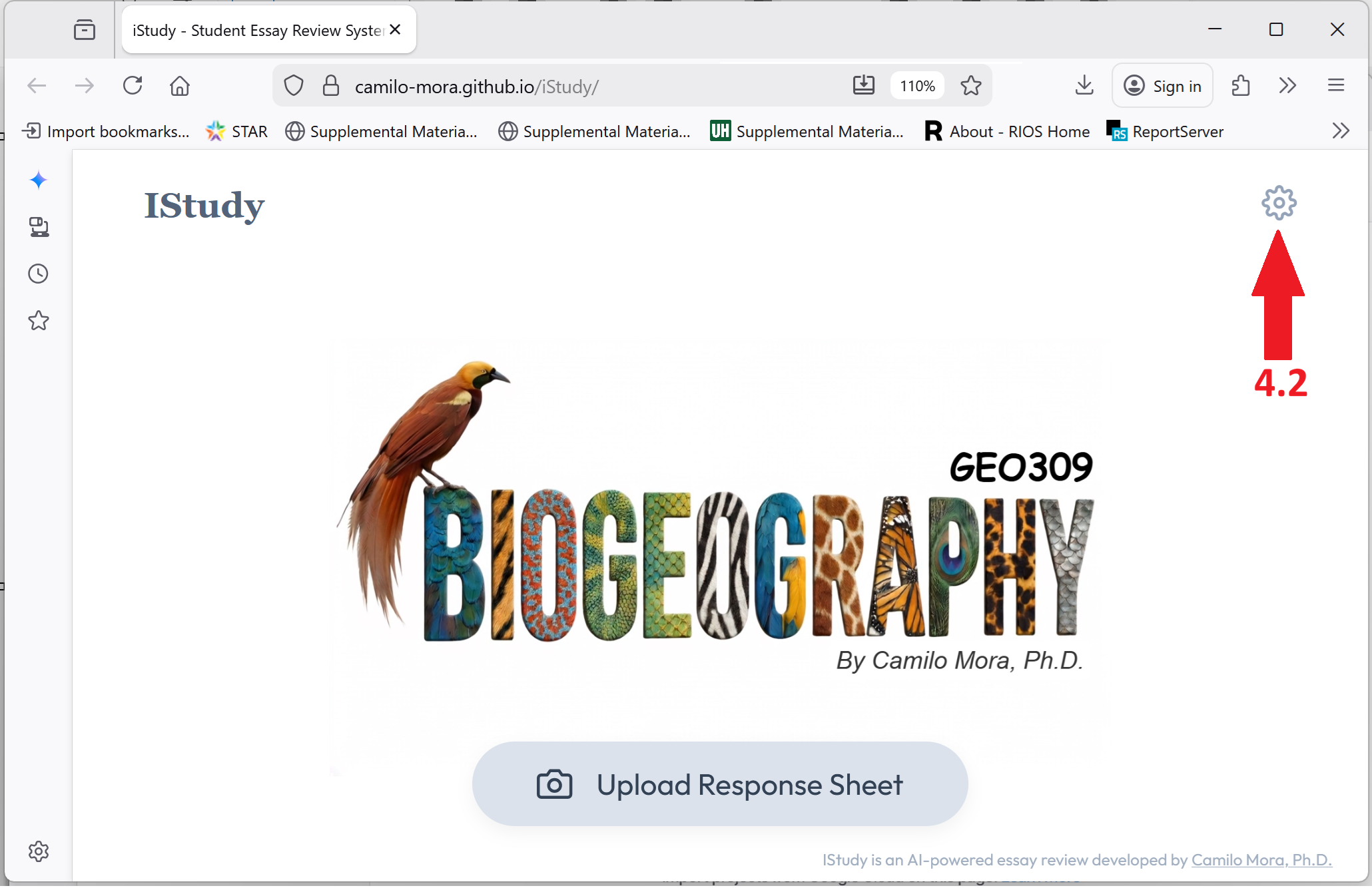
- 4.2 Go to the iStudy app, click the Settings (⚙️) icon, and paste your key, and save it.